



















Backup your data/photos cost effectively

Looking for an ultra cost-effective way to backup your data? It doesn’t get any cheaper than bare drives. See Mac Performance Guide for a lot more on backup and other related topics.
Here’s your solution:
- Newer Tech Voyager Q with Firewire 800 and eSATA ports — see review. The eSATA port is very nice for MacBook Pro or Mac Pro users with an eSATA card for faster backups, speed you’ll appreciate when your data approaches 1TB. You can use USB2 if you have nothing better to do with your time. The ’Q works on Windows PCs also.
plus
- Hitachi 1TB 7K1000.B. It’s about $74.99 after $10 rebate. This is not the fastest 1TB drive out there, but it’s perfect for backups.
I recommend a minimum of three (3) of the 1TB drives (4-5 is best). Each week you wipe one of the drives (erase it), then make a complete backup onto it. Store the backups away from your computer, preferably at another location.
By using 4-5 copies, you not only have redundancy, you have some protection against your own mistakes; you can go back 1/2/3/4 weeks. If you like more redundancy, get two of the Voyager Q’s and make two backups at once.
Tip: reserve one drive for a Time Machine backup (Mac OS X). While you’re not actively using the Voyager Q for your rotating backups, leave a 1TB drive operating for up-to-the-hour protection via Time Machine. I swear by Time Machine, it’s my best computing “friend” — it has saved my ass a number of times: damaged preferences, deleted files, files I altered badly... instant fix, no hassles. I frequently use its “Backup Now” command after completing important work.
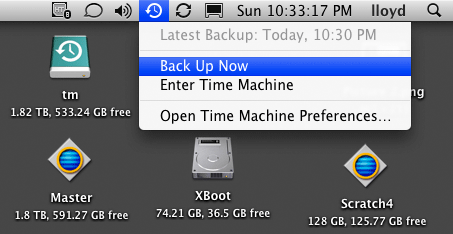
(it’s “backup” to me, I’m not driving a car)
The elegance of this system is its rock-bottom cost, and dead-simple strategy. Don’t go for complicated backup solutions, and store all your data in one place. Complicated = eventual data loss. Use a piece of paper to log your backups, and use sticky notes on the drives indicating which is which.
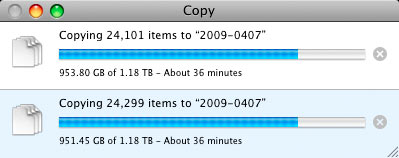
If your data exceeds 1TB, then you can use 1.5TB or 2TB drives, or split your data, or use a striped RAID pair (requires two drive enclosures). I use multiple striped RAID pairs (two 1TB drives each), because backing up 1.1TB onto a single drive takes too long, even with eSATA.
Don’t buy 500GB or 640GB drives, you’ll just fill them up and the performance will be faster with 1TB drives.
The Voyager Q is also very handy for cloning and reconfiguring your system, maintaining a bootable spare, etc. It accepts 3.5" or 2.5" SATA drives, hard drives or SSD. You can use it as a boot drive via Firewire 800. It’s also cool that any shitty old SATA drive can be slotted into the Voyager Q and used for a backup.