



















Mac Pro memory—installation

Installation is a breeze—the easiest I’ve yet seen in a Mac. Pull the riser cards, insert the modules, and re-insert the riser cards. Don’t mix sizes and/or brands, and fill DIMM slots 1 and 2 first on each card eg slot 1 on riser A and slot 1 on riser B, etc.
The first step after installing memory is to verify that it’s recognized by the system. Use the “About This Mac” command in the Apple menu to bring up this dialog:
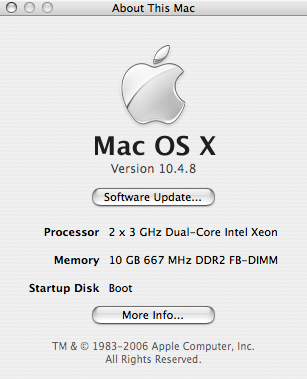
Mac OS X “About This Mac” dialog
Mac OS X has a nice status display for memory (shown below), which can be viewed by clicking “More Info…” in the “About This Mac”. All modules should read “OK” even after heavy testing for multiple hours.
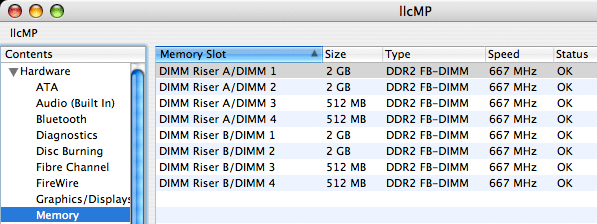 Mac
OS X memory status
Mac
OS X memory status